

I remember the exact moment I realized I’d been using Windows 11 all wrong.
It was a Tuesday evening, maybe eight months after I’d upgraded from Windows 10. I was juggling three browser windows, a spreadsheet, and a Teams call — and I kept alt-tabbing like a madman, accidentally minimizing things, clicking the wrong window. My brain was fried. A colleague saw my screen during the call and literally said, “Why aren’t you using Snap Layouts?”
I had no idea what he was talking about.
Turns out, I’d been ignoring half the features that Microsoft had quietly baked into Windows 11 — features that would’ve saved me hours of frustration every week. Since then, I’ve gone deep on this OS. I’ve broken it, fixed it, customized it, and rebuilt it more than once. And honestly?
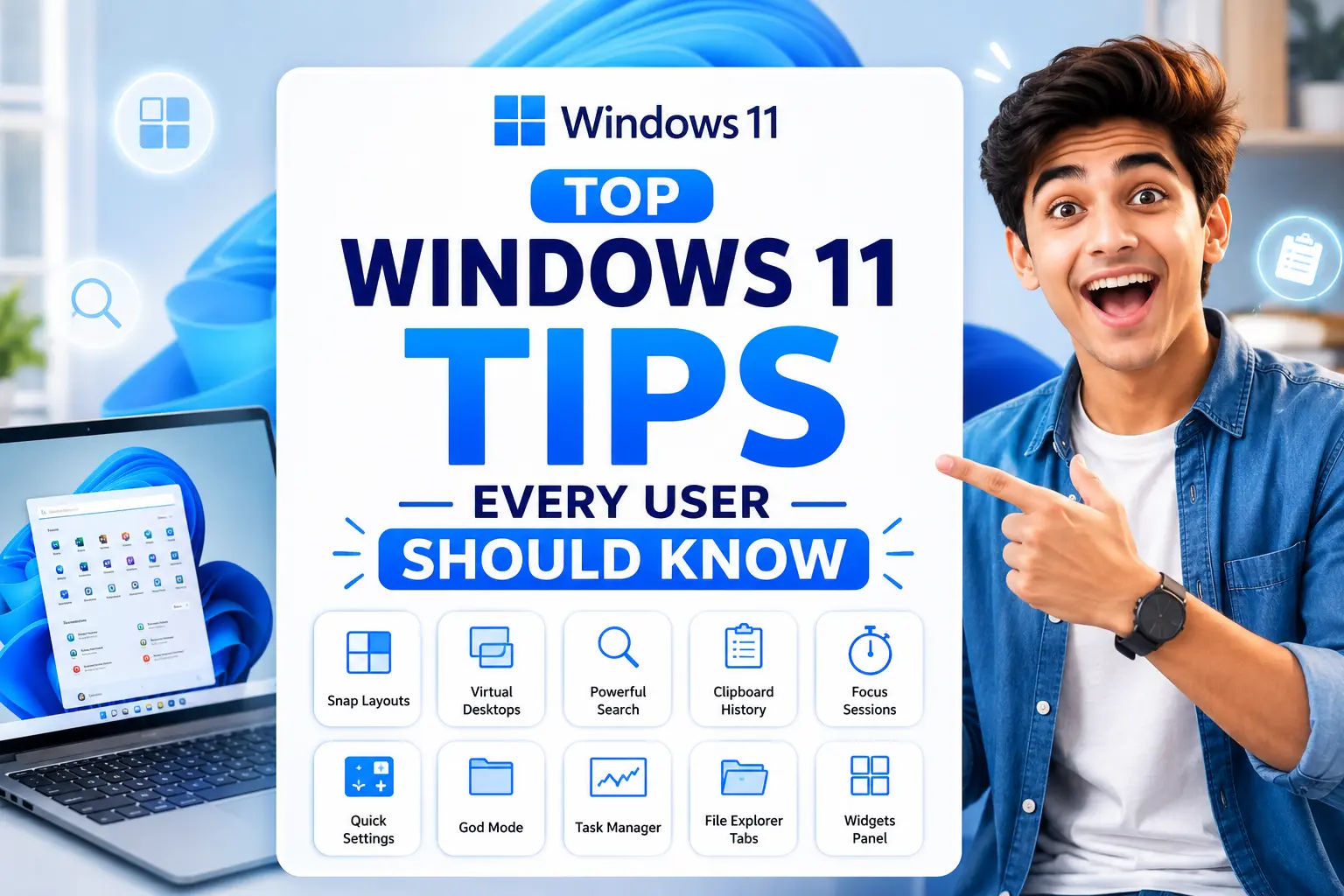
Here’s everything I wish someone had told me from day one. If you’ve been using Windows 11 without really using it, these Windows 11 tips are exactly what you’ve been missing.
1. Snap Layouts Will Change How You Work
This is the one I genuinely can’t believe isn’t more famous. Hover your mouse over the maximize button (the square icon at the top right of any window) and a little grid pops up showing you different layout options — side by side, three columns, a big window with two stacked on the side, etc.
Click a layout zone and your window snaps there. Then Windows 11 asks you to fill the remaining zones with your other open windows.
I now run my setup with Chrome on the left taking up about 60% of my screen, and Notion + a file explorer stacked on the right. I can set this up in about four seconds using Snap Layouts. Before, I was manually dragging and resizing windows like some kind of animal.
Quick tip: You can also trigger this with the keyboard shortcut Win + Z. Much faster once you get used to it.
2. Virtual Desktops Are Underrated — Use Them Right
I went almost a year without touching Virtual Desktops because I thought they were some enterprise IT feature I didn’t need. Wrong.
Think of them like separate workspaces. I have three:
- Work — my browser with work tabs, Outlook, Teams
- Personal — personal email, YouTube, WhatsApp Web
- Projects — code editors, file managers, documentation
To create one: click the Task View button on the taskbar (it looks like two overlapping rectangles), then hit “New desktop” at the top. You can switch between them with Ctrl + Win + Left/Right arrow.
The moment this clicked for me was when I stopped closing apps I’d need again in an hour. I just moved to a different desktop. It sounds small but it genuinely reduces mental clutter.
You can even right-click on a running app in the taskbar and say “Move to” another desktop.
3. The Search Bar Is More Powerful Than It Looks
I used to open File Explorer every time I needed to find something. Then I started actually using the Windows Search (just press Win and start typing) and realized it was basically a command center.
You can:
- Search for files, folders, apps — obviously
- Open websites directly
- Do quick math (“17 * 43” — it just shows the answer)
- Convert units (“50 kg to lbs”)
- Check the weather
- Launch Windows Settings pages directly (“camera privacy settings” takes you right there)
One thing that tripped me up early: if search results look empty or broken, go to Settings > Privacy & Security > Search Permissions, and make sure Enhanced search is turned on. By default it only indexes certain folders.
4. Clipboard History Is a Hidden Gem
This one sounds boring. It’s not.
Press Win + V instead of Ctrl + V when pasting and you get a popup showing everything you’ve copied recently — not just the last item, but a whole history. You can click any previous item to paste it.
I use this constantly when I’m filling out forms, copying multiple pieces of info from a document, or building templates where I need to paste the same things repeatedly.
First time you press Win + V, it’ll ask you to turn Clipboard History on. Just click “Turn on” and you’re set. You can also pin frequently used clips so they don’t disappear when you clear the history.
5. Focus Sessions in the Clock App (Seriously)
I know — the Clock app sounds like something you’d never open intentionally. But Microsoft added a Focus Sessions feature to it that’s actually pretty solid.
Open the Clock app, click “Focus Sessions” on the left sidebar. It works on the Pomodoro method — you set a work duration, it gives you a timer, and it integrates with Spotify (if you use it) and your Microsoft To Do tasks.
What I like about it is that it’s right there in Windows, no extra app to install. When I’m working from home and need to actually get something done, I’ll set a 45-minute focus session and it keeps me honest.
It’s not as feature-rich as dedicated apps like Forest or Focusmate, but for something built into the OS for free, it’s genuinely useful.
6. Quick Settings Panel — Customize It
The little panel that pops up when you click the Wi-Fi/volume/battery icon in the bottom right (or press Win + A) — that’s your Quick Settings. Most people treat it as read-only. It’s not.
Click the pencil icon in the bottom-right corner of that panel and you can add, remove, and rearrange the tiles. I removed Bluetooth (I rarely use it) and added “Cast” for screen mirroring and “Project” for connecting to external displays.
If you connect to monitors or TVs regularly, having the Project quick setting there is so much faster than right-clicking the desktop and going through display settings every time.
7. God Mode — For the Power Users
Okay, the name is a bit dramatic, but this actually works and it’s legitimately useful.
Right-click on your Desktop, click New > Folder, and name the folder exactly this:
GodMode.{ED7BA470-8E54-465E-825C-99712043E01C}
Hit Enter. The folder icon changes to a Control Panel-style icon. Open it and you’ll find literally hundreds of Windows settings and shortcuts all in one place — things that are otherwise buried three or four menus deep.
I found settings in God Mode that I didn’t even know existed, like being able to change how long Windows waits before turning off the display when idle, or detailed options for the power plan behavior.
It’s basically a master list of every configurable thing in Windows 11.
8. Task Manager Got a Major Upgrade
If you haven’t opened Task Manager since upgrading, it looks completely different now. Press Ctrl + Shift + Esc to open it.
The redesign is genuinely good:
- Processes tab now shows efficiency ratings (very useful for laptop users watching battery)
- Performance tab has real-time graphs for CPU, RAM, GPU, disk, and network
- Startup apps tab shows the startup impact of each app — this is where you go to stop Chrome or Teams from auto-starting and slowing down your boot time
The startup apps section alone is worth checking if your PC feels slow to start. I had seven apps auto-starting that I hadn’t intentionally enabled. Disabling most of them cut my boot time noticeably.
9. File Explorer Tabs (Finally!)
Windows 11 version 22H2 added tabbed browsing to File Explorer. If you’re not on that update yet, go to Settings > Windows Update and grab it.
Once you have it, you can open multiple folders in a single File Explorer window using tabs — just like browser tabs. Ctrl + T opens a new tab, Ctrl + W closes it.
I can’t overstate how much this improved my file management workflow. I used to have four or five File Explorer windows open at once, constantly overlapping. Now everything lives in one window with tabs. Dragging files between tabs also works.
10. Widgets Panel — Give It a Second Chance
I initially dismissed the Widgets panel (the news and weather panel you get by pressing Win + W) as a gimmick. And honestly, the news feed part still feels spammy to me. But the actual widgets themselves are useful if you set them up properly.
You can add:
- A watchlist for stocks you follow
- A calendar that shows your upcoming meetings
- A to-do list synced with Microsoft To Do
- Sports scores if that’s your thing
The trick is to right-click on the news articles section and hide or reduce them. Once you clear out the noise, the top half with your personal widgets is actually a clean, useful dashboard.
Common Mistakes I’ve Seen (and Made Myself)
Keeping notifications on for every app. Go to Settings > System > Notifications and turn off notifications for anything that doesn’t genuinely need to interrupt you. Focus mode helps, but cleaning this up at the source is better.
Never changing the power plan. If you’re on a desktop or you keep your laptop plugged in most of the time, switch to “Balanced” or “Best Performance” in Settings > System > Power. The default power-saving mode can throttle performance noticeably.
Ignoring Windows Update optional updates. The main updates install automatically, but driver updates and optional features often sit waiting under “Advanced options > Optional updates.” I had a weird audio glitch for two months that was fixed by an optional driver update I hadn’t noticed.
Using the default browser settings without thinking. Windows 11 ties a lot of things (like clicking links in the Mail app or search results) to Microsoft Edge by default. If you prefer Chrome or Firefox, go to Settings > Apps > Default apps and change them individually. It’s annoying that you have to do it for each file type, but it’s worth doing.
One Final Thing Worth Knowing
Windows 11 gets better the more you customize it to how you actually work. The defaults are fine for general use, but they’re not designed around your specific setup or habits.
The features above aren’t obscure registry hacks or third-party tools — they’re all built right into the OS. Most of them are off by default or just easy to miss. Once they become part of your daily workflow, you’ll wonder how you were managing without them.
Spend a Saturday morning exploring your Settings app with no agenda. Just click around. You’ll find things that change how you use your PC every day. That’s actually how I found half the tips on this list.
If you’re a student, pairing Focus Sessions with these AI tools that students are using to study smarter in 2026 is a seriously powerful combo.

1 thought on “Top Windows 11 Tips Every User Should Know”